Conversations
Show a user their reports and your team's replies, and let them answer — with the React hooks or the client directly.
PanelUI components are native-only for now
The hooks and the client work on the web. The PanelUI components the App version draws threads with — Support, Message, Message Scroller and Textarea — are React Native components and don't run in a browser yet. A thread on the web builds the same screens with plain markup.
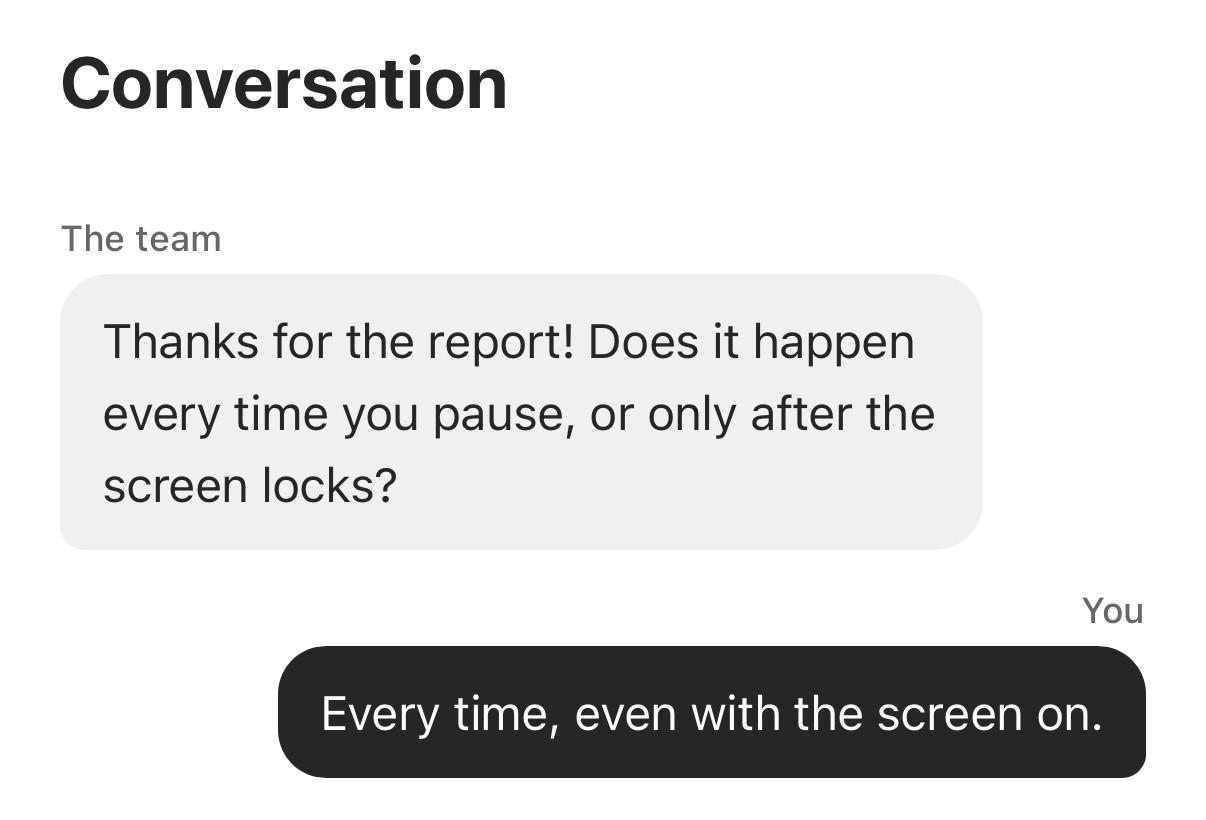
Every report is a thread. Your team replies from the inbox; the app reads the thread and can add to it. Replies travel over plain HTTP, so an open thread polls while someone is looking at it and nothing runs in the background.
A user's reports
useFeedbackList lists this install's own reports, newest first, with how many
replies each has:
import { FlatList, RefreshControl } from 'react-native';
import { useFeedbackList } from 'panelui-studio/react';

export function MyReports({ onOpen }: { onOpen: (id: string) => void }) {
  const { items, isLoading, reload } = useFeedbackList();

  return (
    <FlatList
      data={items}
      keyExtractor={(item) => item.id}
      refreshControl={<RefreshControl refreshing={isLoading} onRefresh={reload} />}
      renderItem={({ item }) => (
        <ReportRow report={item} onPress={() => onOpen(item.id)} />
      )}
    />
  );
}
It doesn't poll: a list of your own reports rarely changes while you look at it.
Pull to refresh calls reload.
'use client';

import { useFeedbackList } from 'panelui-studio/react';

export function MyReports({ onOpen }: { onOpen: (id: string) => void }) {
  const { items, isLoading, reload } = useFeedbackList();

  return (
    <section>
      <button type="button" onClick={reload} disabled={isLoading}>
        Refresh
      </button>
      <ul>
        {items.map((item) => (
          <li key={item.id}>
            <button type="button" onClick={() => onOpen(item.id)}>
              {item.message} {item.replies > 0 ? `· ${item.replies} replies` : ''}
            </button>
          </li>
        ))}
      </ul>
    </section>
  );
}
It doesn't poll: a list of your own reports rarely changes while you look at it.
A refresh button, or opening the page again, calls reload.
One thread
useConversation loads a thread, polls it every 15 seconds while mounted, and
sends replies:
import { useConversation } from 'panelui-studio/react';

export function Thread({ feedbackId }: { feedbackId: string }) {
  const { messages, isLoading, isSending, send } = useConversation(feedbackId);

  return (
    <>
      {messages.map((message) => (
        <Bubble key={message.id} mine={message.author === 'user'}>
          {message.body}
        </Bubble>
      ))}
      <Composer disabled={isSending} onSend={send} />
    </>
  );
}
Bubble and Composer stand in for your own components;
Usage with PanelUI has the same thread built from
PanelUI's.
Bubble and Composer stand in for your own components;
A thread on the web has both in plain markup.
authoris'user'for the person using your app and'developer'for your team. Internal notes never reach the app.- Pass
{ pollMs: 0 }to turn polling off, or a longer interval to poll less. - A sent message appears straight away; the next poll reconciles it.
- Reading a thread marks your team's replies as read, which the inbox shows.
- A reply on resolved feedback moves it back to In progress.
Without React
The client has the same operations:
const reports = await studio.feedback.list();
const thread = await studio.conversations.messages(reports[0].id);
await studio.conversations.send(reports[0].id, 'Yes, it happens every time.');
A thread on the web
The thread from above with the placeholders filled in: the messages in a list, and a form that sends a reply. It polls every 15 seconds while it's on screen.
'use client';

import { useState } from 'react';
import { useConversation } from 'panelui-studio/react';

export function Thread({ feedbackId }: { feedbackId: string }) {
  const { messages, isSending, send } = useConversation(feedbackId);
  const [draft, setDraft] = useState('');

  async function reply(event: React.FormEvent<HTMLFormElement>) {
    event.preventDefault();
    const body = draft.trim();
    if (!body) return;
    setDraft('');
    await send(body);
  }

  return (
    <section aria-label="Conversation">
      <ol>
        {messages.map((message) => (
          <li key={message.id} data-author={message.author}>
            <strong>{message.author === 'user' ? 'You' : 'The team'}</strong>
            <p>{message.body}</p>
          </li>
        ))}
      </ol>
      <form onSubmit={reply}>
        <label htmlFor="reply">Reply</label>
        <textarea id="reply" value={draft} onChange={(event) => setDraft(event.target.value)} />
        <button type="submit" disabled={isSending}>
          Send
        </button>
      </form>
    </section>
  );
}
In Next.js, a route like app/messages/[id]/page.tsx can pass its id to
<Thread feedbackId={id} />.
Usage with PanelUI
The hooks return plain data, so any UI can draw them. If your app uses PanelUI, here is a "My messages" screen: Support's conversation rows list the reports, with a status pill and a dot when there's a reply.
import { router } from 'expo-router';
import { Support } from 'panelui-native';
import { useFeedbackList } from 'panelui-studio/react';

// PanelUI's `pending` reads "Waiting on you" — the user — so Studio's
// in_progress, which is the team's turn, stays `open`.
const status = { new: 'open', in_progress: 'open', resolved: 'solved', archived: 'closed' } as const;

export default function Messages() {
  const { items } = useFeedbackList();

  return (
    <Support.Conversations>
      {items.map((item) => (
        <Support.Conversation
          key={item.id}
          title={item.kind === 'support' ? 'Support' : `Feedback #${item.number}`}
          preview={item.message}
          status={status[item.status]}
          timestamp={new Date(item.lastMessageAt ?? item.createdAt).toLocaleDateString()}
          updated={item.replies > 0}
          onPress={() => router.push(`/thread/${item.id}`)}
        />
      ))}
    </Support.Conversations>
  );
}
The thread: Message draws each turn, Message Scroller keeps the newest in view, and a Textarea answers.
import { useState } from 'react';
import { KeyboardAvoidingView, View } from 'react-native';
import { useLocalSearchParams } from 'expo-router';
import { Button, Message, MessageScroller, Textarea } from 'panelui-native';
import { useConversation } from 'panelui-studio/react';

export default function Thread() {
  const { id } = useLocalSearchParams<{ id: string }>();
  const { messages, isSending, send } = useConversation(id);
  const [draft, setDraft] = useState('');

  async function reply() {
    const body = draft.trim();
    if (!body) return;
    setDraft('');
    await send(body);
  }

  return (
    <KeyboardAvoidingView behavior="padding" className="flex-1">
      <MessageScroller autoScroll className="flex-1">
        <MessageScroller.List
          data={messages.map((message) => ({ ...message, messageId: message.id }))}
          contentContainerClassName="gap-3 px-5"
          renderItem={({ item }) => (
            <Message align={item.author === 'user' ? 'end' : 'start'}>
              <Message.Content>
                <Message.Header>{item.author === 'user' ? 'You' : 'The team'}</Message.Header>
                <Message.Bubble>
                  <Message.BubbleContent>{item.body}</Message.BubbleContent>
                </Message.Bubble>
              </Message.Content>
            </Message>
          )}
        />
        <MessageScroller.Button />
      </MessageScroller>
      <View className="flex-row items-end gap-2 px-5 pt-3">
        <Textarea
          containerClassName="flex-1"
          autoGrow
          rows={1}
          maxRows={5}
          placeholder="Reply"
          value={draft}
          onChangeText={setDraft}
        />
        <Button loading={isSending} onPress={reply}>
          Send
        </Button>
      </View>
    </KeyboardAvoidingView>
  );
}
MessageScroller.List needs a stable messageId on each row, so the message
id is copied onto it.