

Questionnaire
One question at a time, with progress, validation and a way back.
A multi-step questionnaire: one question on screen, the answers collected as they are given, and the way forward held until the current question is answered.
It owns the flow. You supply the questions and do something with the answers; everything between those two points belongs to it. That is the difference from Steps, which only reflects a flow your app is already running.
Installation
Questionnaire ships with the library — no separate install.
import { Questionnaire, Text, Card, BottomSheet, Button, Progress } from 'panelui-native';Or copy the source into your project, to own and edit it:
npx panelui-cli@latest add questionnaireUsage
const questions = [
  { name: 'direction', required: true },
  { name: 'detail' },
] as const;

<Questionnaire items={questions} onSubmit={(answers) => save(answers)}>
  <Questionnaire.Title>Prototype</Questionnaire.Title>
  <Questionnaire.Progress />

  <Questionnaire.Item name="direction" required>
    <Questionnaire.Question>What should we build next?</Questionnaire.Question>
    <Questionnaire.Description>Choose the direction you want to see first.</Questionnaire.Description>
    <Questionnaire.Choices>
      <Questionnaire.Choice value="delegation" label="Delegation" description="Show how work moves to a specialist." />
      <Questionnaire.Choice value="prompts" label="Question prompts" />
      <Questionnaire.Choice value="both" label="Both together" />
    </Questionnaire.Choices>
    <Questionnaire.Error />
  </Questionnaire.Item>

  <Questionnaire.Item name="detail">
    <Questionnaire.Question>How much detail?</Questionnaire.Question>
    <Questionnaire.Choices>
      <Questionnaire.Choice value="focused" label="Focused" />
      <Questionnaire.Choice value="complete" label="The complete flow" />
    </Questionnaire.Choices>
  </Questionnaire.Item>

  <Questionnaire.Footer>
    <Questionnaire.Back />
    <Questionnaire.Spacer />
    <Questionnaire.Skip />
    <Questionnaire.Next />
    <Questionnaire.Submit />
  </Questionnaire.Footer>
</Questionnaire>
Composition
<Questionnaire items={questions}>
  <Questionnaire.Title>…</Questionnaire.Title>
  <Questionnaire.Progress />
  <Questionnaire.Item name="…">
    <Questionnaire.Question>…</Questionnaire.Question>
    <Questionnaire.Description>…</Questionnaire.Description>
    <Questionnaire.Choices>
      <Questionnaire.Choice value="…" label="…" />
      <Questionnaire.Input placeholder="…" />
    </Questionnaire.Choices>
    <Questionnaire.Error />
  </Questionnaire.Item>
  <Questionnaire.Footer>
    <Questionnaire.Back />
    <Questionnaire.Spacer />
    <Questionnaire.Next />
    <Questionnaire.Submit />
  </Questionnaire.Footer>
</Questionnaire>
The parts are given to Questionnaire as one flat list, and it sorts them into the frame it draws: the title and progress go to the header strip above the panel, the footer's actions to the band around it, and every Questionnaire.Item becomes a question. Order the items the way you want them asked — or pass items and let that decide.
Questionnaire.Spacer is for the unframed layout, where the actions sit at their own widths and something has to push them apart. In the band every action is already an equal share of the row, so a spacer there is dropped rather than given a share of its own.
Examples
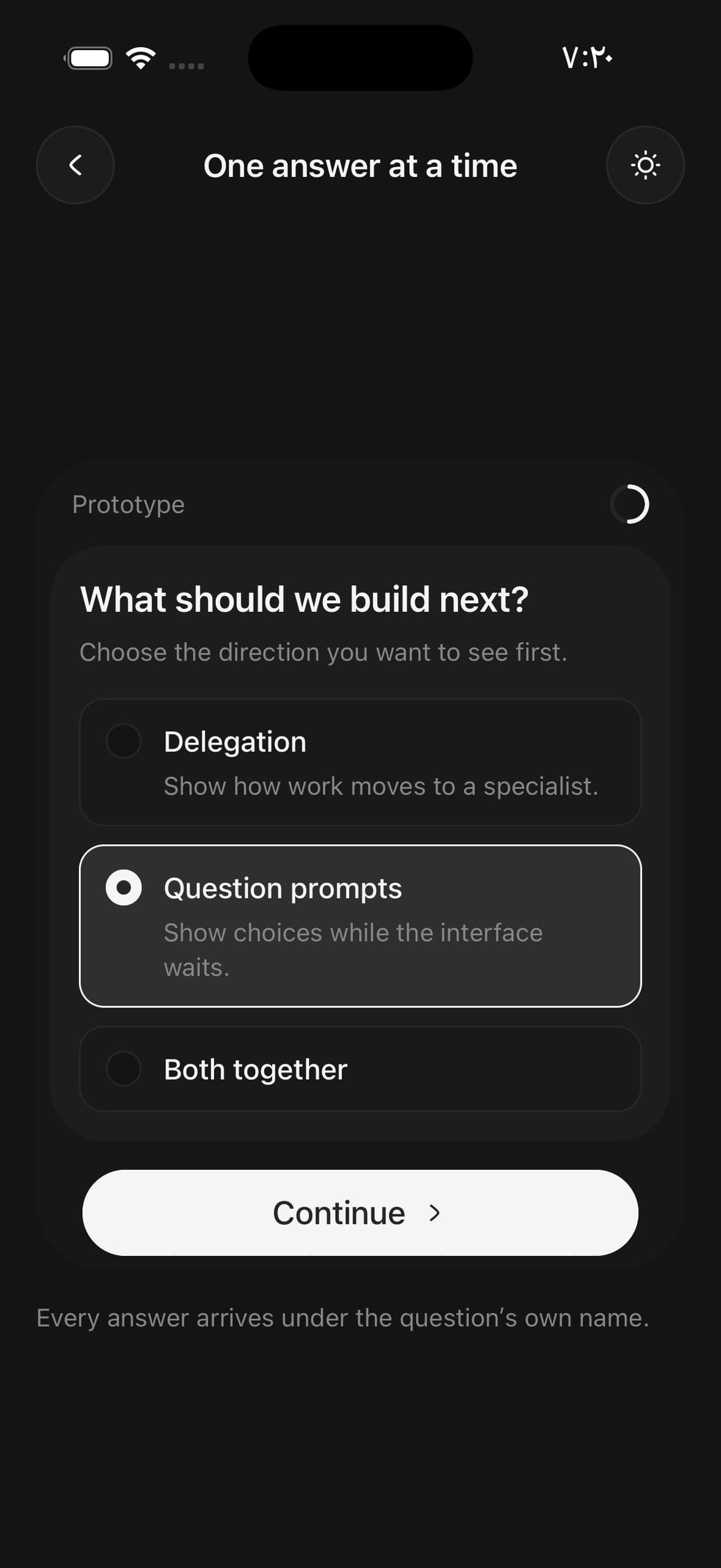
One answer at a time
The default shape: a required question, an optional one, and a footer that shows only the actions that apply to the question on screen.
const questions = [
  { name: 'direction', required: true },
  { name: 'detail' },
] as const;

function Prototype() {
  const [answers, setAnswers] = useState<QuestionnaireAnswers>({});

  return (
    <Questionnaire items={questions} onAnswersChange={setAnswers} onSubmit={save}>
      <Questionnaire.Title>Prototype</Questionnaire.Title>
      <Questionnaire.Progress />

      <Questionnaire.Item name="direction" required>
        <Questionnaire.Question>What should we build next?</Questionnaire.Question>
        <Questionnaire.Description>Choose the direction you want to see first.</Questionnaire.Description>
        <Questionnaire.Choices>
          <Questionnaire.Choice
            value="delegation"
            label="Delegation"
            description="Show how work moves to a specialist."
          />
          <Questionnaire.Choice value="prompts" label="Question prompts" />
          <Questionnaire.Choice value="both" label="Both together" />
        </Questionnaire.Choices>
        <Questionnaire.Error />
      </Questionnaire.Item>

      <Questionnaire.Item name="detail">
        <Questionnaire.Question>How much detail?</Questionnaire.Question>
        <Questionnaire.Description>Skip this one if you have not decided.</Questionnaire.Description>
        <Questionnaire.Choices>
          <Questionnaire.Choice value="focused" label="Focused" />
          <Questionnaire.Choice value="complete" label="The complete flow" />
        </Questionnaire.Choices>
      </Questionnaire.Item>

      <Questionnaire.Footer>
        <Questionnaire.Back />
        <Questionnaire.Spacer />
            <Questionnaire.Next />
        <Questionnaire.Submit />
      </Questionnaire.Footer>
    </Questionnaire>
  );
}
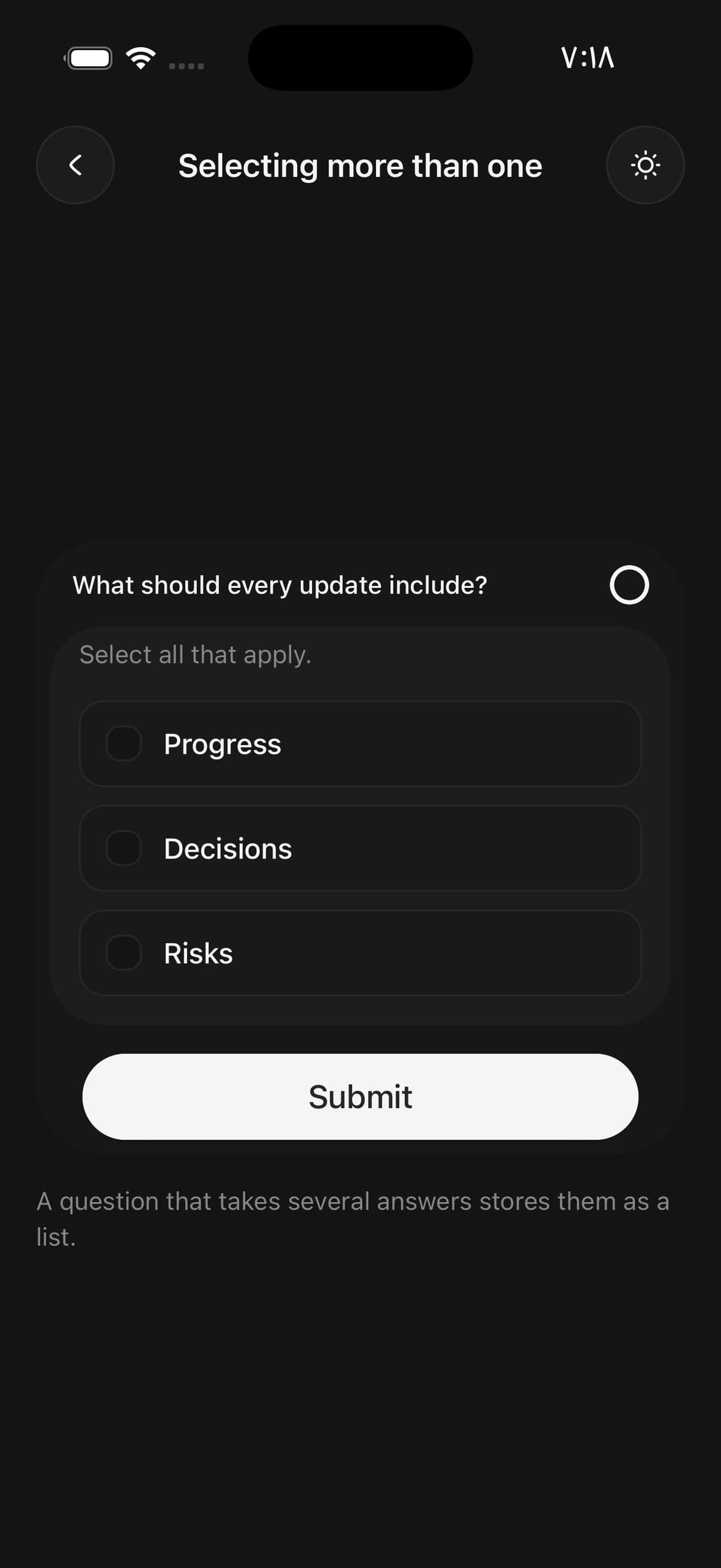
Selecting more than one
multiple turns a question’s answers into a set rather than a choice, and its answer arrives as an array.
<Questionnaire onAnswersChange={setAnswers}>
  <Questionnaire.Progress />
  <Questionnaire.Item name="signals" required multiple>
    <Questionnaire.Question>What should every update include?</Questionnaire.Question>
    <Questionnaire.Description>Select all that apply.</Questionnaire.Description>
    <Questionnaire.Choices>
      <Questionnaire.Choice value="progress" label="Progress" />
      <Questionnaire.Choice value="decisions" label="Decisions" />
      <Questionnaire.Choice value="risks" label="Risks" />
    </Questionnaire.Choices>
    <Questionnaire.Error />
  </Questionnaire.Item>
  <Questionnaire.Footer>
    <Questionnaire.Spacer />
    <Questionnaire.Submit />
  </Questionnaire.Footer>
</Questionnaire>

// answers.signals -> ['progress', 'risks']
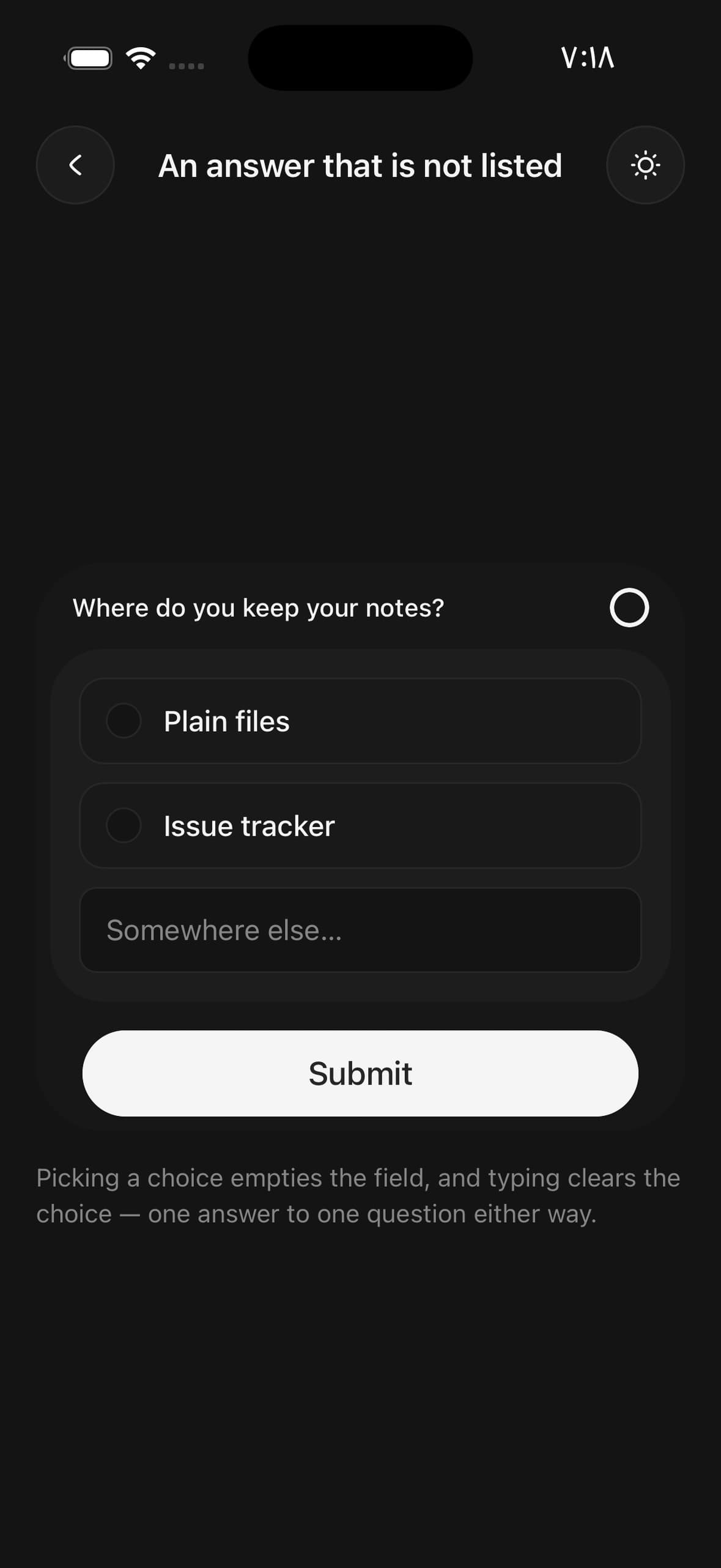
An answer that is not listed
Put a Questionnaire.Input among the choices. It holds whatever the question is answered with that none of the choices offers, so the two clear each other without either knowing the other is there.
<Questionnaire.Item name="tool" required>
  <Questionnaire.Question>Where do you keep your notes?</Questionnaire.Question>
  <Questionnaire.Choices>
    <Questionnaire.Choice value="files" label="Plain files" />
    <Questionnaire.Choice value="issues" label="Issue tracker" />
    <Questionnaire.Input placeholder="Somewhere else…" />
  </Questionnaire.Choices>
  <Questionnaire.Error />
</Questionnaire.Item>
Leaving one out on purpose
Skip records the decision rather than unblocking anything — an optional question never blocks. onStatusChange is how you tell a question that was skipped from one that was never answered.
It goes beside the primary action, in place of Back rather than alongside it. Three actions in the band come out narrow enough to truncate the one carrying the flow, and a row of three reads as three equal decisions when only one of them is the way forward.
const [timing, setTiming] = useState<QuestionnaireItemStatus>('unanswered');

<Questionnaire
  onSubmit={(answers) =>
    save({
      timing: timing === 'skipped' ? { skipped: true } : { value: answers.timing },
    })
  }
>
  <Questionnaire.Item name="timing" onStatusChange={setTiming}>
    <Questionnaire.Question>When should this be revisited?</Questionnaire.Question>
    <Questionnaire.Description>Skip this if timing has not been decided.</Questionnaire.Description>
    <Questionnaire.Choices>
      <Questionnaire.Choice value="week" label="This week" />
      <Questionnaire.Choice value="cycle" label="Next cycle" />
    </Questionnaire.Choices>
  </Questionnaire.Item>
  <Questionnaire.Footer>
    <Questionnaire.Spacer />
    <Questionnaire.Skip />
    <Questionnaire.Submit />
  </Questionnaire.Footer>
</Questionnaire>
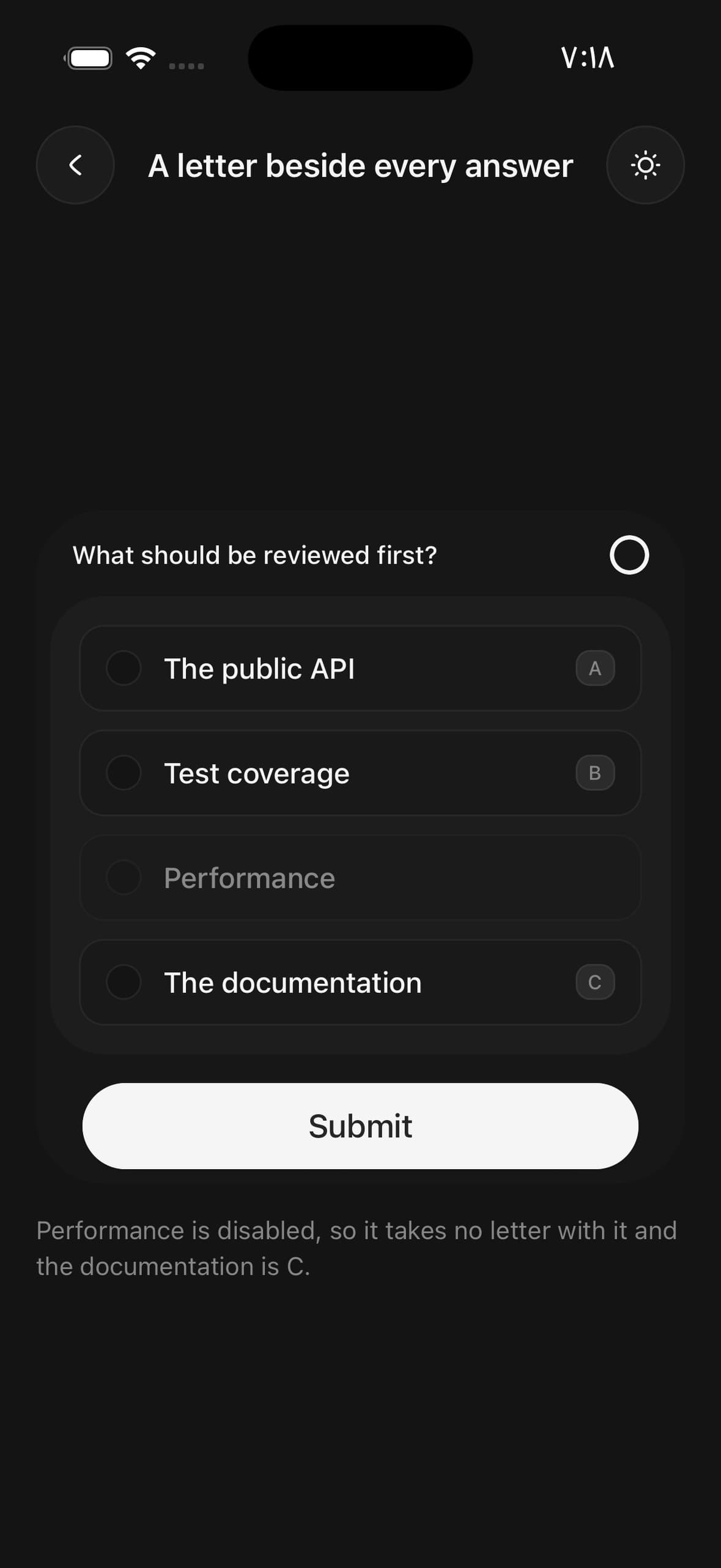
A letter beside every answer
Disabled answers are skipped rather than taking a letter with them, so the documentation below is C. The badge is an affordance, not a binding — React Native surfaces hardware key events only to a focused text field.
<Questionnaire shortcuts="letters">
  <Questionnaire.Progress />
  <Questionnaire.Item name="review" required>
    <Questionnaire.Question>What should be reviewed first?</Questionnaire.Question>
    <Questionnaire.Choices>
      <Questionnaire.Choice value="api" label="The public API" />
      <Questionnaire.Choice value="tests" label="Test coverage" />
      <Questionnaire.Choice value="perf" label="Performance" disabled />
      <Questionnaire.Choice value="docs" label="The documentation" />
    </Questionnaire.Choices>
  </Questionnaire.Item>
</Questionnaire>

// shortcuts="numbers" badges them 1, 2, 3 instead.
Checking an answer against a schema
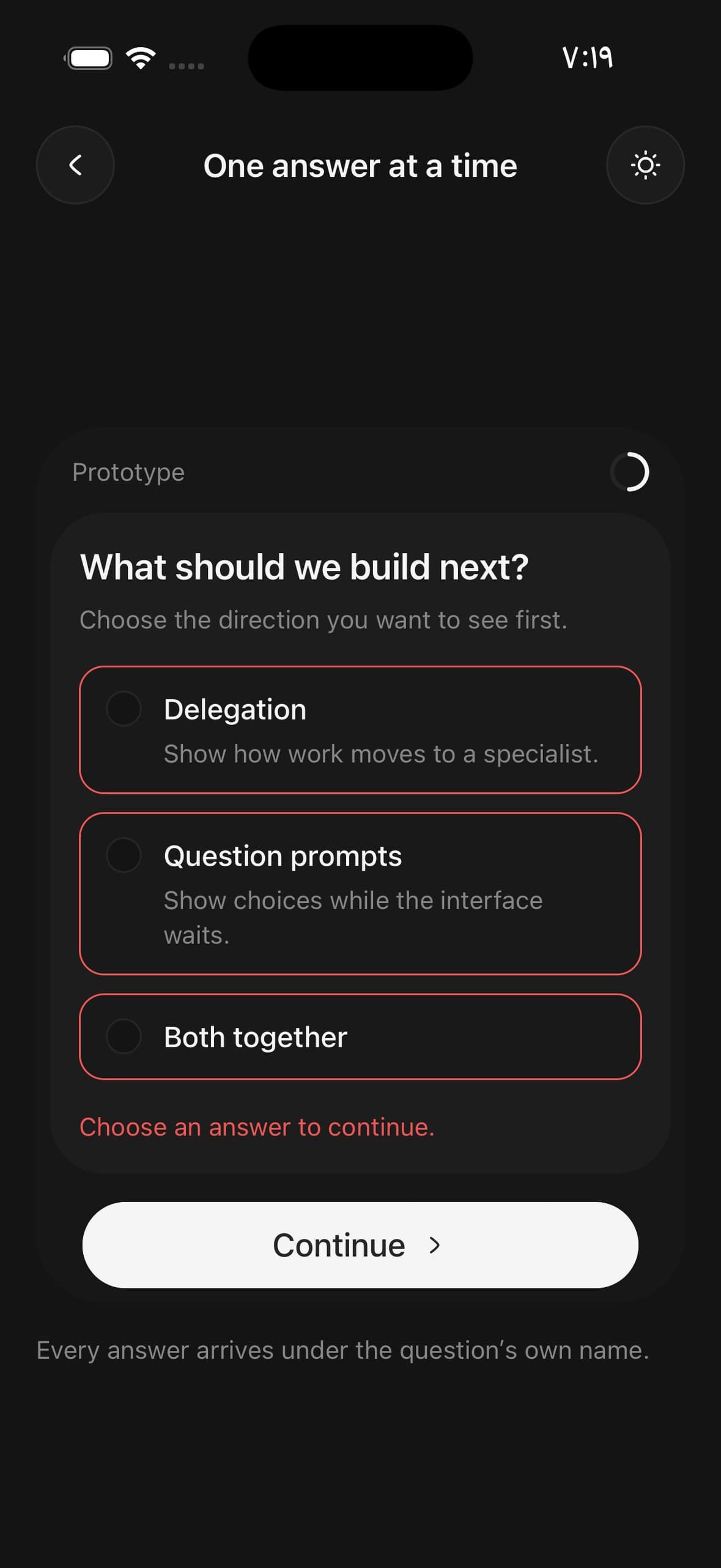
The built-in rule is only that a required question has an answer. For anything more, keep the answers yourself and pass invalid back down — the question then reads as at fault and its Questionnaire.Error shows your message.
That is what the shot below is: every choice outlined, the message under them, and the way forward still there to be pressed. Questionnaire.Next dims rather than disabling itself, because a button that refuses without saying why leaves the reader nothing to act on.
function Contact() {
  const [answers, setAnswers] = useState<QuestionnaireAnswers>({});

  const email = typeof answers.email === 'string' ? answers.email : '';
  const malformed = email.length > 0 && !email.includes('@');

  return (
    <Questionnaire answers={answers} onAnswersChange={setAnswers} onSubmit={save}>
      <Questionnaire.Item name="email" required invalid={malformed}>
        <Questionnaire.Question>Where should we reply?</Questionnaire.Question>
        <Questionnaire.Choices>
          <Questionnaire.Input placeholder="you@example.com" keyboardType="email-address" />
        </Questionnaire.Choices>
        <Questionnaire.Error>That does not look like an email address.</Questionnaire.Error>
      </Questionnaire.Item>
      <Questionnaire.Footer>
        <Questionnaire.Spacer />
        <Questionnaire.Submit disabled={malformed} />
      </Questionnaire.Footer>
    </Questionnaire>
  );
}
Driving the current question from outside
Pass item and onItemChange to hold the active question in your own state — for jumping back to one from a summary, or restoring where somebody was.
const [current, setCurrent] = useState('role');

<>
  <Questionnaire item={current} onItemChange={setCurrent} onSubmit={save}>
    <Questionnaire.Progress />
    <Questionnaire.Item name="role" required>…</Questionnaire.Item>
    <Questionnaire.Item name="size" required>…</Questionnaire.Item>
    <Questionnaire.Footer>
      <Questionnaire.Back />
      <Questionnaire.Spacer />
      <Questionnaire.Next />
      <Questionnaire.Submit />
    </Questionnaire.Footer>
  </Questionnaire>

  <Button variant="outline" onPress={() => setCurrent('role')}>
    Back to the first question
  </Button>
</>
Picking up where they left off
Both halves of the state take a default, so a part-finished questionnaire reopens on the question it was left on with the answers already given.
const saved = await load();

<Questionnaire
  defaultItem={saved.item}
  defaultAnswers={saved.answers}
  onItemChange={(item) => persist({ item })}
  onAnswersChange={(answers) => persist({ answers })}
  onSubmit={finish}
>
  …
</Questionnaire>
Questions that only apply sometimes
A disabled question is left out of the count and never navigated to. Compute it from the answers so far, and pass items — a question that has not been reached is not mounted, so its own props cannot be read until it is.
const [answers, setAnswers] = useState<QuestionnaireAnswers>({});
const solo = answers.size === 'solo';

const questions = [
  { name: 'size', required: true },
  { name: 'seats', required: true, disabled: solo },
  { name: 'contact', required: true },
];

<Questionnaire items={questions} answers={answers} onAnswersChange={setAnswers}>
  <Questionnaire.Progress />
  <Questionnaire.Item name="size" required>…</Questionnaire.Item>
  <Questionnaire.Item name="seats" required disabled={solo}>…</Questionnaire.Item>
  <Questionnaire.Item name="contact" required>…</Questionnaire.Item>
  …
</Questionnaire>

// Answer "Just me" and the questionnaire is two questions long, not three.
A footer that reads the question
Give a navigation button a function and it is called with the active question’s state — for a label that changes once the question has been answered. Back and Continue carry a chevron by default; pass startContent/endContent to change or drop it.
<Questionnaire.Footer>
  <Questionnaire.Back />
  <Questionnaire.Spacer />
  <Questionnaire.Next>
    {({ status }) => (status === 'answered' ? 'Continue' : 'Choose an answer')}
  </Questionnaire.Next>
  <Questionnaire.Submit>Finish</Questionnaire.Submit>
</Questionnaire.Footer>
A ring, pips, numbers, or a count
Questionnaire.Progress draws an arc by default, sweeping from twelve o'clock as the reader advances. It says how far through the set they are without saying how many questions there are, which is what lets one indicator stand for three questions or thirty.
pips draws a bar per question instead, filled up to the one being asked and widened on it. numbers counts them out — worth it where the reader will be sent back to a particular question, since neither a bar nor an arc gives them anything to go back to. count is the plain text.
pips and numbers fall back to the count past eight questions, where neither is countable at a glance. The ring never does.
Give it a function for anything else; it stays a progress bar to a screen reader either way.
<Questionnaire.Progress />                    {/* ◑ */}
<Questionnaire.Progress variant="pips" />     {/* ▬▬ ▪ ▪ ▪ */}
<Questionnaire.Progress variant="numbers" />  {/* ① ② ③ ④ */}
<Questionnaire.Progress variant="count" />    {/* Question 2 of 5 */}

// Or build your own from the position:
<Questionnaire.Progress>
  {({ current, total }) => (
    <Progress value={current} maxValue={total} className="w-24" />
  )}
</Questionnaire.Progress>

<Questionnaire.Progress>
  {({ current, total }) => <Text size="sm" muted>{total - current} to go</Text>}
</Questionnaire.Progress>
Without the frame
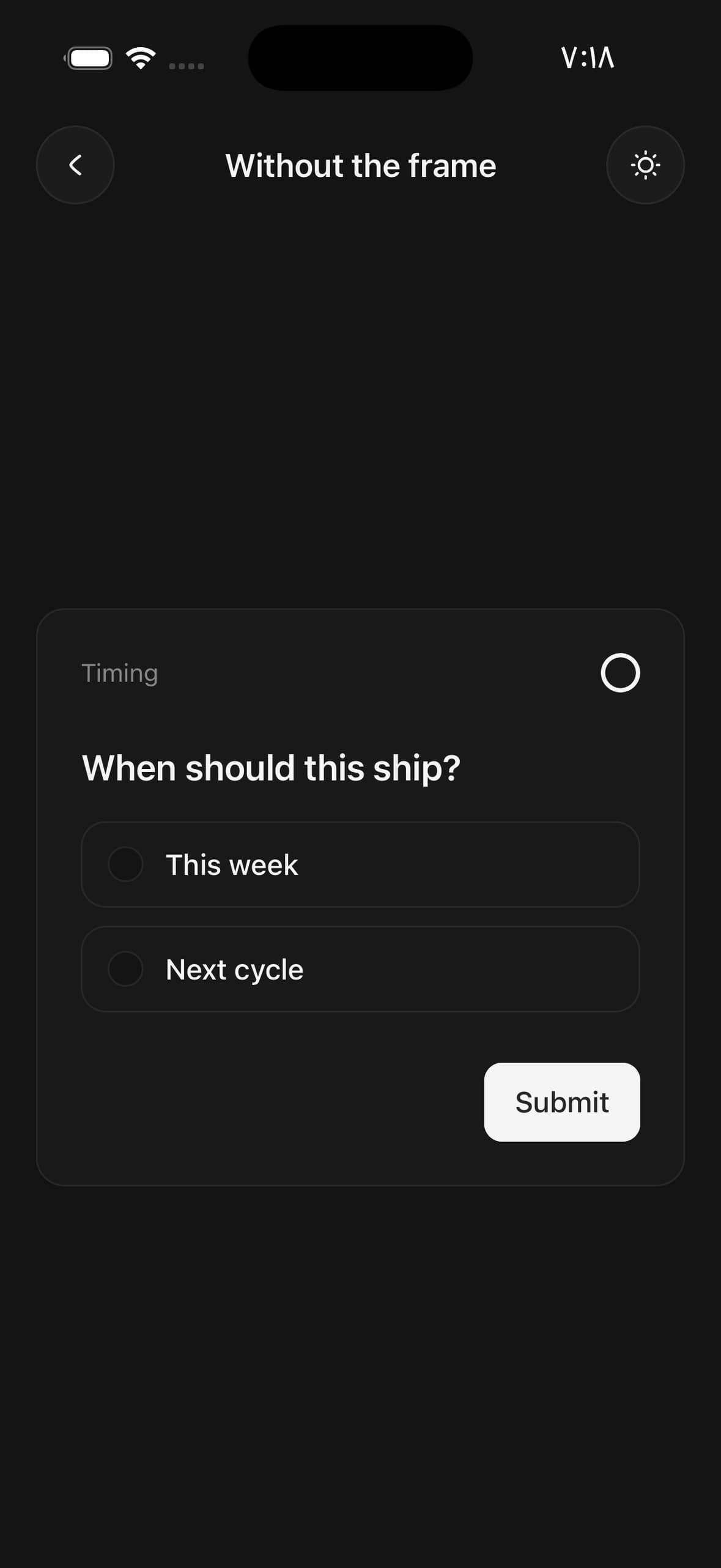
The surrounding Frame is the component’s own. Turn it off for a questionnaire inside something that already draws a boundary, and the header, question and footer stack bare — keeping only their vertical rhythm, because the container is already holding them off the edges. Mind that container’s own insets: Card.Content is p-6 pt-0 because it expects a Card.Header above it, so without one the progress row starts flush against the card’s top edge.
<Card>
  <Card.Content className="pt-6">
    <Questionnaire frame={false}>
      <Questionnaire.Title>Timing</Questionnaire.Title>
      <Questionnaire.Progress />
      <Questionnaire.Item name="timing" required>
        <Questionnaire.Question>When should this ship?</Questionnaire.Question>
        <Questionnaire.Choices>
          <Questionnaire.Choice value="week" label="This week" />
          <Questionnaire.Choice value="cycle" label="Next cycle" />
        </Questionnaire.Choices>
      </Questionnaire.Item>
      <Questionnaire.Footer>
        <Questionnaire.Spacer />
        <Questionnaire.Submit />
      </Questionnaire.Footer>
    </Questionnaire>
  </Card.Content>
</Card>
In a bottom sheet
The sheet owns being dismissed and the questionnaire owns the questions — neither has to know what the other is doing. Pass showClose={false}: the sheet places its close button in its top-right corner, which is exactly where the progress sits, and two things in one corner is one of them unreachable. A questionnaire with Back, Skip and Send does not need a third way out, and the sheet still dismisses by drag and by backdrop.
<BottomSheet open={open} onOpenChange={setOpen}>
  <BottomSheet.Content showClose={false}>
    <View className="p-4">
      <Questionnaire
        frame={false}
        onSubmit={(answers) => {
          send(answers);
          setOpen(false);
        }}
      >
        <Questionnaire.Progress />
        <Questionnaire.Item name="mood" required>
          <Questionnaire.Question>How did that go?</Questionnaire.Question>
          <Questionnaire.Choices>
            <Questionnaire.Choice value="good" label="Better than expected" />
            <Questionnaire.Choice value="fine" label="About right" />
            <Questionnaire.Choice value="bad" label="Not well" />
          </Questionnaire.Choices>
          <Questionnaire.Error />
        </Questionnaire.Item>
        <Questionnaire.Footer>
          <Questionnaire.Spacer />
          <Questionnaire.Submit>Send</Questionnaire.Submit>
        </Questionnaire.Footer>
      </Questionnaire>
    </View>
  </BottomSheet.Content>
</BottomSheet>
Swiping between questions
A horizontal drag moves between questions, gated on the same answer the button is: swipe forward off an unanswered required question and it springs back and shows the error. A drag that is even slightly vertical belongs to the page, so a questionnaire in a scroller never fights it. Pass swipeable={false} to leave navigation to the buttons alone.
<Questionnaire items={questions} swipeable onSubmit={save}>
  …
</Questionnaire>

// Buttons only:
<Questionnaire items={questions} swipeable={false} onSubmit={save}>
  …
</Questionnaire>
Versions
Getting set up
Five questions and the summary they add up to — required, optional, multi-answer and freeform in one flow, with the answers laid out in a Frame at the end.
const questions = [
  { name: 'role', required: true },
  { name: 'size', required: true },
  { name: 'stack', multiple: true },
  { name: 'timeline' },
  { name: 'contact', required: true },
] as const;

function Onboarding() {
  const [done, setDone] = useState<QuestionnaireAnswers | null>(null);

  if (done) {
    return (
      <Frame>
        <Frame.Header>
          <Frame.Title>Your answers</Frame.Title>
        </Frame.Header>
        <Frame.Panel>
          {Object.entries(done).map(([name, value]) => (
            <Frame.Row key={name}>
              <Frame.Content>
                <Frame.Title>{name}</Frame.Title>
                <Frame.Description>
                  {Array.isArray(value) ? value.join(', ') : value}
                </Frame.Description>
              </Frame.Content>
            </Frame.Row>
          ))}
        </Frame.Panel>
      </Frame>
    );
  }

  return (
    <Questionnaire items={questions} onSubmit={setDone}>
      <Questionnaire.Title>Getting set up</Questionnaire.Title>
      <Questionnaire.Progress />

      <Questionnaire.Item name="role" required>
        <Questionnaire.Question>What do you do?</Questionnaire.Question>
        <Questionnaire.Choices>
          <Questionnaire.Choice value="engineer" label="Engineering" />
          <Questionnaire.Choice value="design" label="Design" />
          <Questionnaire.Choice value="product" label="Product" />
          <Questionnaire.Input placeholder="Something else…" />
        </Questionnaire.Choices>
        <Questionnaire.Error />
      </Questionnaire.Item>

      <Questionnaire.Item name="stack" multiple>
        <Questionnaire.Question>What are you building with?</Questionnaire.Question>
        <Questionnaire.Description>Select all that apply.</Questionnaire.Description>
        <Questionnaire.Choices>
          <Questionnaire.Choice value="expo" label="Expo" />
          <Questionnaire.Choice value="next" label="Next.js" />
          <Questionnaire.Choice value="native" label="Bare React Native" />
        </Questionnaire.Choices>
      </Questionnaire.Item>

      <Questionnaire.Item name="timeline">
        <Questionnaire.Question>When are you shipping?</Questionnaire.Question>
        <Questionnaire.Description>Skip this if it is not decided.</Questionnaire.Description>
        <Questionnaire.Choices>
          <Questionnaire.Choice value="month" label="Within a month" />
          <Questionnaire.Choice value="quarter" label="This quarter" />
        </Questionnaire.Choices>
      </Questionnaire.Item>

      <Questionnaire.Footer>
        <Questionnaire.Back />
        <Questionnaire.Spacer />
            <Questionnaire.Next />
        <Questionnaire.Submit>Finish</Questionnaire.Submit>
      </Questionnaire.Footer>
    </Questionnaire>
  );
}
In a sheet
Two questions in a bottom sheet, where the sheet owns dismissal and the questionnaire owns the questions. frame={false}, because the sheet is already the boundary — showClose={false}, because the sheet's close button would land on top of the progress — and variant="pips", because a short sheet reads better with marks lying flat along the strip than with a ring standing up off it.
function Feedback() {
  const [open, setOpen] = useState(false);

  return (
    <>
      <Button onPress={() => setOpen(true)}>Ask me two questions</Button>

      <BottomSheet open={open} onOpenChange={setOpen}>
        <BottomSheet.Content showClose={false}>
          <Questionnaire
            frame={false}
            onSubmit={(answers) => {
              send(answers);
              setOpen(false);
            }}
          >
            <Questionnaire.Title>Feedback</Questionnaire.Title>
            <Questionnaire.Progress variant="pips" />

            <Questionnaire.Item name="mood" required>
              <Questionnaire.Question>How did that go?</Questionnaire.Question>
              <Questionnaire.Choices>
                <Questionnaire.Choice value="good" label="Better than expected" />
                <Questionnaire.Choice value="fine" label="About right" />
                <Questionnaire.Choice value="bad" label="Not well" />
              </Questionnaire.Choices>
              <Questionnaire.Error />
            </Questionnaire.Item>

            <Questionnaire.Item name="why">
              <Questionnaire.Question>Anything to add?</Questionnaire.Question>
              <Questionnaire.Choices>
                <Questionnaire.Input placeholder="In your own words…" />
              </Questionnaire.Choices>
            </Questionnaire.Item>

            <Questionnaire.Footer>
              <Questionnaire.Back />
              <Questionnaire.Spacer />
                        <Questionnaire.Next />
              <Questionnaire.Submit>Send</Questionnaire.Submit>
            </Questionnaire.Footer>
          </Questionnaire>
        </BottomSheet.Content>
      </BottomSheet>
    </>
  );
}
API Reference
Questionnaire
| Prop | Type | Default | Description |
|---|---|---|---|
className | string | — | |
items | readonly QuestionnaireItemDefinition[] | — | The full set of questions, in order. Optional: without it the order and the totals come from the Questionnaire.Item children instead. Pass it when a question is conditional, since a question the user has not reached still has to be counted — or not counted, if it no longer applies. |
item | string | — | Controlled active question, by name. |
defaultItem | string | — | Which question to open on. Defaults to the first enabled one. |
onItemChange | (name: string) => void | — | Called with the name of the question being moved to. |
answers | QuestionnaireAnswers | — | Controlled answers. |
defaultAnswers | QuestionnaireAnswers | — | Answers to start with — for resuming a part-finished questionnaire. |
onAnswersChange | (answers: QuestionnaireAnswers) => void | — | Called with the whole set every time any answer changes. |
onSubmit | (answers: QuestionnaireAnswers) => void | — | Called with every answer once the last question validates. |
shortcuts | QuestionnaireShortcutMode | — | Badge every answer with a letter (A, B, C) or a number (1, 2, 3). Disabled answers are skipped rather than taking a badge with them. The badge is an affordance, not a binding: React Native surfaces hardware key events only to a focused text field, so nothing here can listen for the key itself. |
swipeable | boolean | true | Let a horizontal drag move between questions. Going forward is gated on the same answer the button is, so a swipe off an unanswered required question springs back and shows its error. |
frame | boolean | true | Draw the surrounding Frame. Turn it off to place the questionnaire in a sheet, a dialog or a card that already draws its own boundary. |
Questionnaire.Title
| Prop | Type | Default | Description |
|---|---|---|---|
className | string | — |
Questionnaire.Progress
| Prop | Type | Default | Description |
|---|---|---|---|
className | string | — | |
variant | QuestionnaireProgressVariant | 'ring' | ring is an arc that sweeps round as the reader advances — how far through the set they are, without saying how many questions there are. It is the only one that holds its size and its meaning at any length, which is why it is the default. pips is a bar per question, filled up to the one being asked and widened on it. numbers counts them out instead, which is what you want when the reader will be sent back to a particular question. count is the plain Question 2 of 5. pips and numbers fall back to count past eight questions, where neither is countable at a glance any more. ring never does. |
Questionnaire.Item
| Prop | Type | Default | Description |
|---|---|---|---|
className | string | — | |
name | string | — | Unique name — the key this question's answer is stored under. |
required | boolean | — | Blocks the way forward until it has an answer. |
multiple | boolean | — | Accepts more than one answer, so its answer is an array. |
disabled | boolean | — | Left out of the count and never navigated to. |
invalid | boolean | — | Mark the question at fault from a validator of your own. |
onStatusChange | (status: QuestionnaireItemStatus) => void | — | Called whenever this question moves between unanswered, answered and skipped. |
Questionnaire.Question
| Prop | Type | Default | Description |
|---|---|---|---|
className | string | — |
Questionnaire.Description
| Prop | Type | Default | Description |
|---|---|---|---|
className | string | — |
Questionnaire.Choices
| Prop | Type | Default | Description |
|---|---|---|---|
className | string | — |
Questionnaire.Choice
| Prop | Type | Default | Description |
|---|---|---|---|
className | string | — | |
value | string | — | The value recorded when this answer is picked. |
label | string | — | The answer itself. |
description | string | — | A line under the label, for an answer that needs explaining. |
disabled | boolean | — |
Questionnaire.Input
| Prop | Type | Default | Description |
|---|---|---|---|
className | string | — |
Questionnaire.Error
| Prop | Type | Default | Description |
|---|---|---|---|
className | string | — |
Questionnaire.Footer
| Prop | Type | Default | Description |
|---|---|---|---|
className | string | — |
Every part also accepts the underlying React Native props (ViewProps or TextProps) and a className for Tailwind utilities.
Notes
Answers come back as a record keyed by question name: a string for a single-answer question, an array of strings for a multiple one. That is the whole contract — onAnswersChange fires on every change and onSubmit fires once, with the same shape.
A required question is the only thing that blocks the way forward. An optional one never does, so Questionnaire.Skip does not unblock anything: it records that the question was deliberately left out, moving its status from unanswered to skipped so your app can tell the two apart through onStatusChange. Making an optional question demand an explicit skip would trap anyone who did not render the button, and a question that cannot be ignored is not optional.
Questionnaire.Next and Questionnaire.Submit dim while a required question is unanswered, but stay pressable. A disabled button says no without saying why, and on a question whose answers have scrolled out of view that is the whole of the feedback; pressing this one puts the reason under the question instead. The dimming is what stops it promising something it will not do — the look says not yet, the press says why not. Pass disabled if you would rather it were inert.
Pass items whenever a question is conditional. Only the active question is mounted, so a question that has not been reached cannot report that it exists — and without the full set there is no total to count against and no way to leave a question out. items also decides the order; without it, the order of the Questionnaire.Item children does.
A freeform answer lands under the same name as the fixed ones, because it is another answer to the same question rather than a separate field. Questionnaire.Input shows whatever the question is answered with that none of its own choices offers, which is what makes picking a choice empty the field and typing clear the choice.
shortcuts badges each answer with a letter or a number, skipping disabled ones so they do not take a letter out of the sequence. The badge is an affordance, not a binding: React Native surfaces hardware key events only to a focused text field, so nothing here can listen for the key itself.
Placing an unframed questionnaire in a container with chrome of its own means checking the corners: BottomSheet puts its close button in the top-right, which is where Questionnaire.Progress sits, so pass showClose={false} there. A sheet is also short, and variant="pips" lies flat along the strip where the ring stands up off it.
The surrounding Frame is drawn by the component: the panel the question is written on floats in a recessed band, with the title and the progress on the strip above it and the footer's actions as equal pills in the band below. Pass frame={false} to drop it — for a questionnaire in a BottomSheet, a Dialog, or a card that already draws its own boundary. With the frame off the questionnaire keeps only its vertical rhythm, because the container it was placed in is already holding it off the edges.
Public exports
Values: Questionnaire
Types: QuestionnaireProps, QuestionnaireTitleProps, QuestionnaireProgressProps, QuestionnaireProgressState, QuestionnaireProgressVariant, QuestionnaireItemProps, QuestionnaireQuestionProps, QuestionnaireDescriptionProps, QuestionnaireChoicesProps, QuestionnaireChoiceProps, QuestionnaireInputProps, QuestionnaireErrorProps, QuestionnaireFooterProps, QuestionnaireActionProps, QuestionnaireActionState, QuestionnaireAnswers, QuestionnaireItemDefinition, QuestionnaireItemStatus, QuestionnaireShortcutMode